Simple mode — the whole panel as one chat
Staff now sign in straight to the chat console and see nothing but the chat — no menus, charts or reports. The full panel is always one button away.
Product update 2 min read
What changed
Somebody who opens the panel for the first time and meets dozens of menus, charts and reports is put off by it. From today, colleagues whose job is not to manage others or read the books — sales, support, marketing, read-only seats — sign in straight to the chat console, in simple mode.
Simple mode shows three things: the business's name, the conversation and the message box. Whatever needs doing is asked right there: "Who should I call today?", "Remind me to call at 4", "Send Mr Rezaei the quote". The thread list, the tools' working steps, skills and the auto-approve switch are not shown. It is one chat, too: each time you come back, the same conversation carries on.
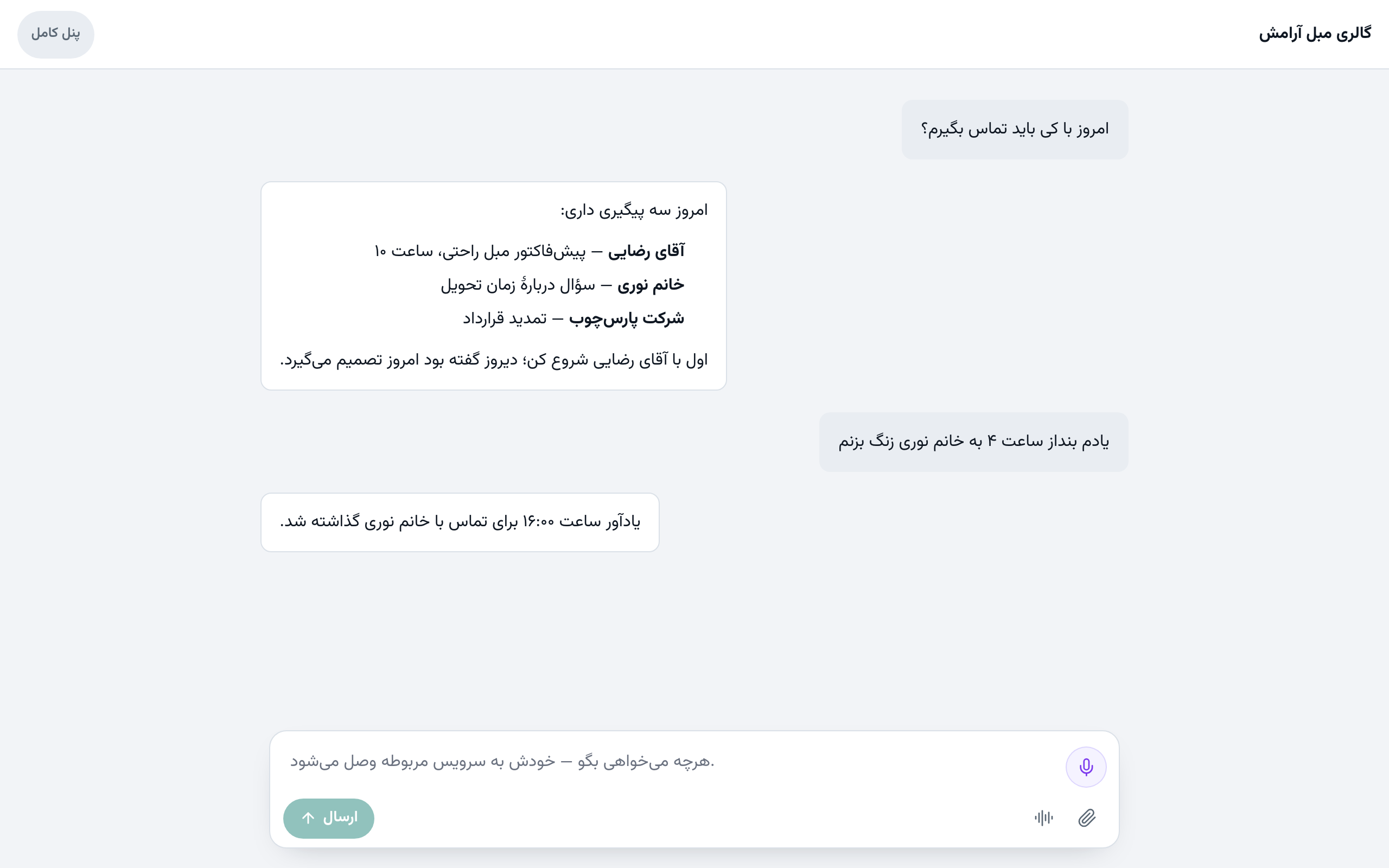
How to use it
- Sign in. If you are on a staff seat, the chat console opens.
- Type or say what you need. When something needs your permission, a card comes with Allow it and No.
- To see the whole panel, press Full panel in the top corner. The choice is saved, so your next sign-in opens the full panel too.
- To go back, open the side list in the chat console and press Simple mode.
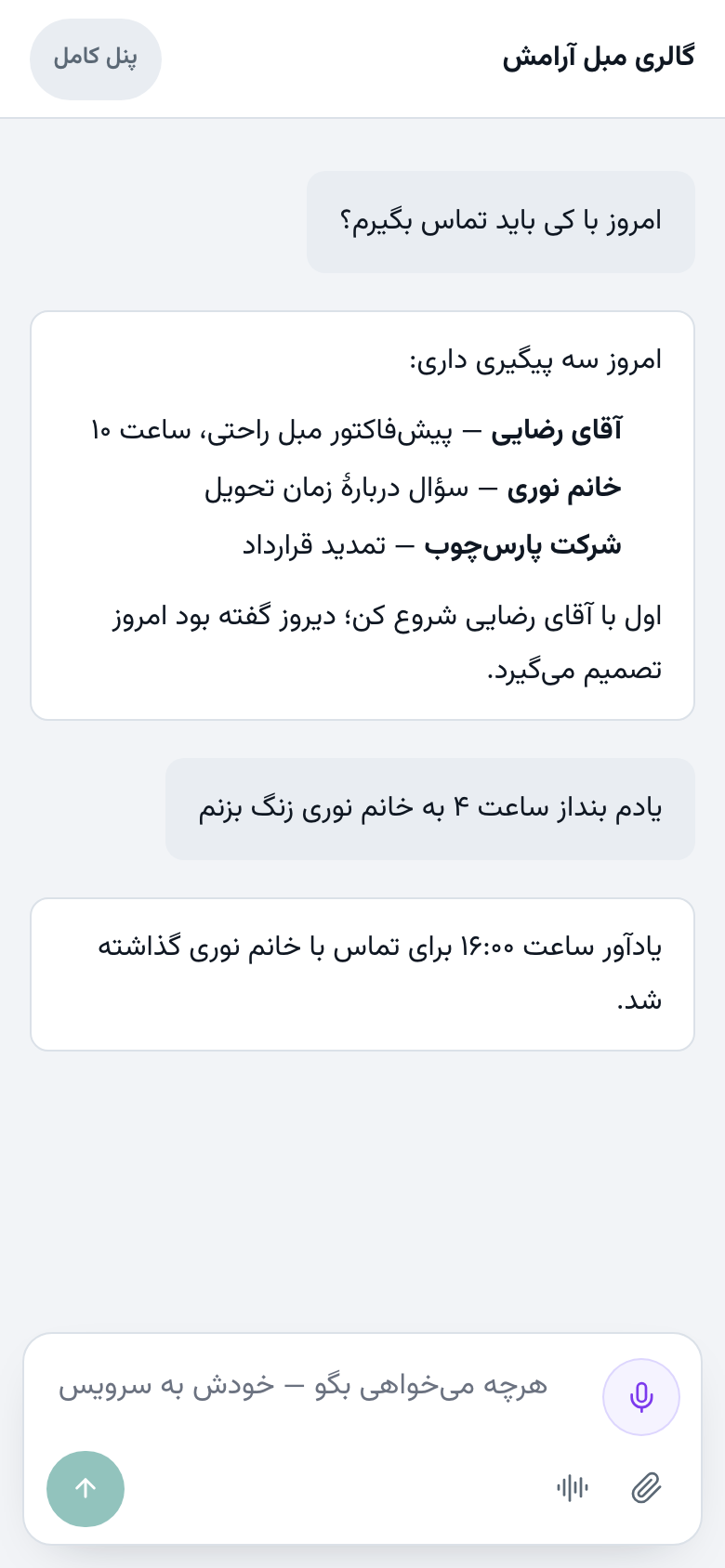
Good to know
- The owner, managers, accountants and anybody who manages the team or hands out leads start in the full panel as before, and can choose Simple mode themselves.
- Nothing is locked away: every page still opens at its address, with the same permissions as before.